How to log a Quote with Multiple Parts
In the Part Search screen, select one of the parts you want to add to the quote by checking the box.

Find the other part you wish to add and check that box.

Once all of the parts are selected, then click on the SEARCH button.
In the Search Results screen, select the part you are quoting.
NOTE: If a Sub Assembly part E.G. Door, Bootlid, Tailgate - An Assembly Part Window will pop up. This will indicate what's left in this part that you are quoting. Select OK.
Click on the "Quote" button.

This Order Wizard window will pop up.
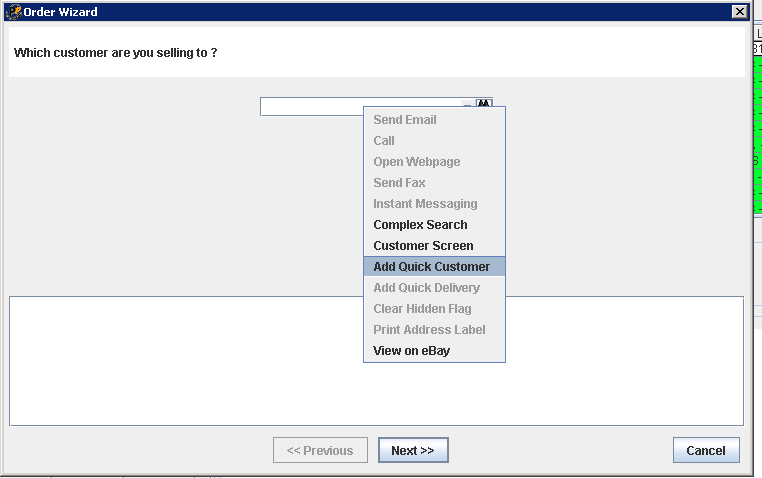
For Trade Customers, start typing their company name then click on the binoculars icon and choose the correct one. Click on Next.
For Non-Trade Customers:
Right-Click in the box; select "Add Quick Customer" from the drop-down list.
Click NEXT.
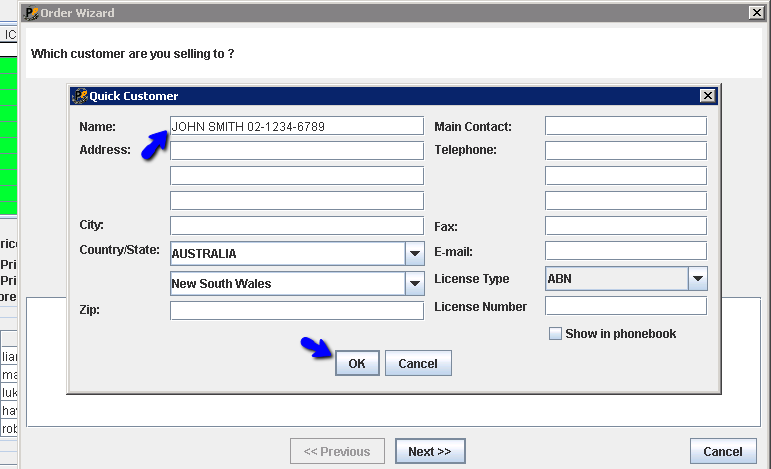
Type in the Customer's Name and their phone number, if they give it to you.
Click OK.
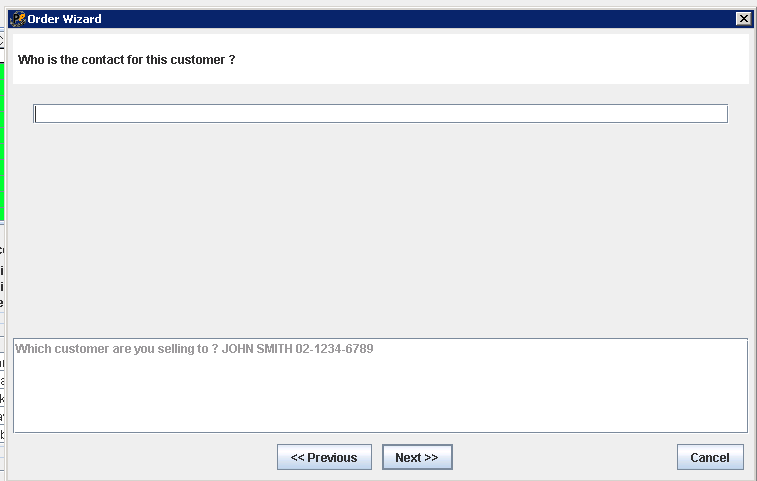
This is not necessary to enter in, if you don't have the name. If you get the customer's name (Trade Customers), enter it here.
Click NEXT.
In the Pricing screen, Enter in the TOTAL price, INCLUDING GST.
A separate screen will show for each part.
Click NEXT.

ALWAYS, select No Warranty.
Click NEXT.

In this screen, choose if you are going to enter in any notes or not.
Click NEXT.

Click on either, Public or Private Comment.
Public Comments will be printed on the Quote.
Private Comments are for staff and only we can see them in Pinnacle.

Enter in the Comment text and click on "Add to Order".
Click OK.

If you preview the Quote, you can see each part listed and the Public Notes.

Now you can click on the Save and Exit button.

To Print the Quote, click in the "Quote" checkbox.
To Email the Quote to the customer, click in the "E-Mail Quote" box.
To do neither, just leave the boxes unchecked.
Click on "Save" and this will save the quote.

Related Articles
Brokered Parts General Guidelines
Brokered Parts General Guidelines - SALES - LINK TO GUIDE BRAD 06/06/2022HOW TO LOG A QUOTE WITH WARRANTY
WHY So we can get extra $$ from warranty and give customer assurance that our part is good with warranty =============================================== SETUP Should have access to Pinnacle =============================================== STEPS VIDEO ...HOW TO GET FREIGHT QUOTE FOR ITEMS SENT WITH TIG/OPEN FREIGHT
HOW TO GET EXACT FREIGHT QUOTE FOR ITEMS SENT WITH TIG/OPEN FREIGHT SET UP LINK TO BOX CODES LINK TO OPEN FREIGHT TIG SOFTWARE - Need login to this system ...NATIONAL FREIGHT MANAGEMENT SYSTEM - HOW TO GET FREIGHT QUOTE- UPDATED 09/09/19
1. Go to National Freight Management website HERE. 2. Click on LOGIN on the upper right hand. 3. Use the log in details that was shared to you via LastPass to log in. Contact your manager if you don't have it yet. 4. Select QUICK QUOTE 5. TYPE ...How to log a Quote WITH a Warranty
Click here to view the instructional video Look up the part in Pinnacle. In the Search Results screen, select the part you are quoting. NOTE: If a Sub Assembly part E.G. Door, Bootlid, Tailgate - An Assembly Part Window will pop up. This will ...