RECONCILIATION DATE EOM CHECKING
In Xero, go to Reports - All Reports - Bank Reconciliation Summary
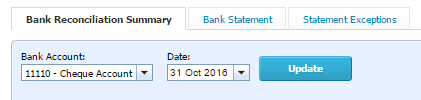




Enter date as the last day of last month
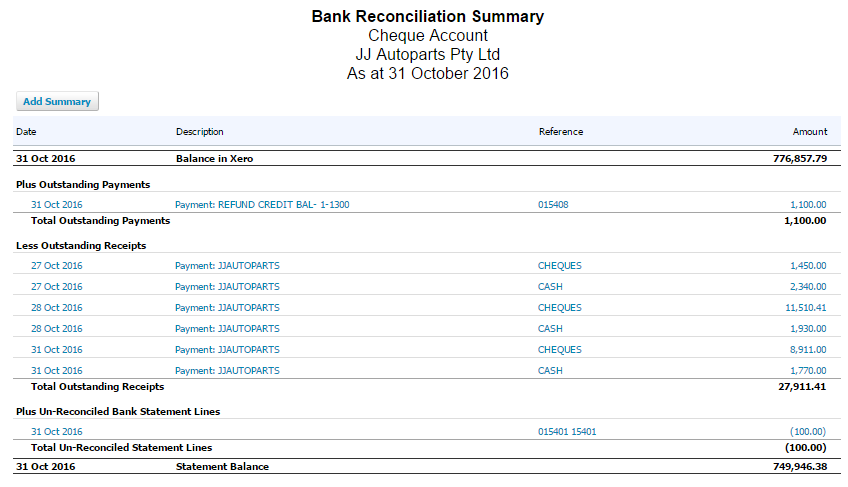
Will take you to this page.
PLUS OUTSTANDING PAYMENTS and LESS OUTSTANDING RECEIPTS means they were reconciled/paid not in the same month as the invoice entered date.
We now have to edit and correct the dates.
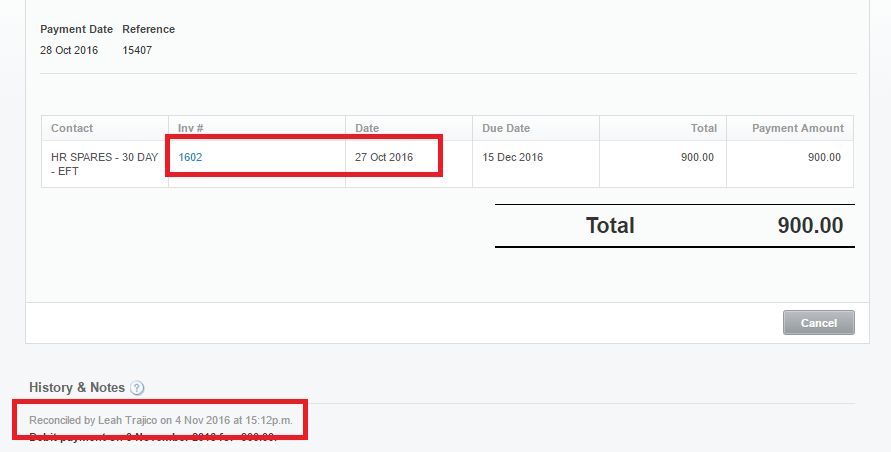
Open one entry:
As shown above, the invoice was entered 27/10 but was only reconciled 04/11 which means that was when the debit/deposit appeared in Xero. We now have to match the invoice/payment date to the date of debit/deposit.
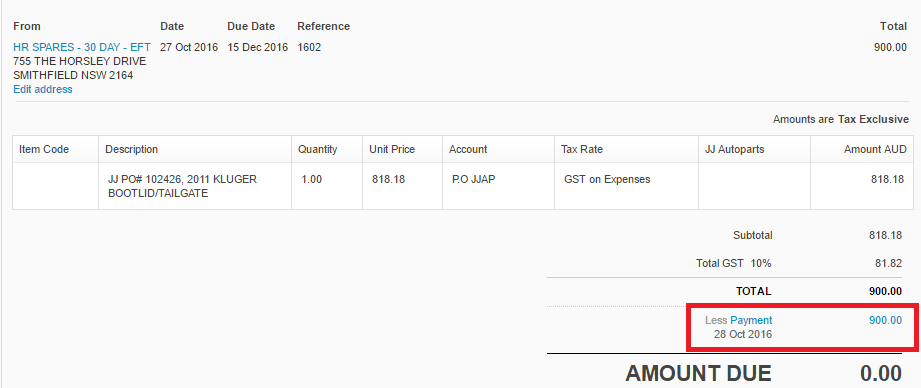
To do so, click on the invoice number. It will take you to the invoice entry. Click on Payment.
Click on Remove and Redo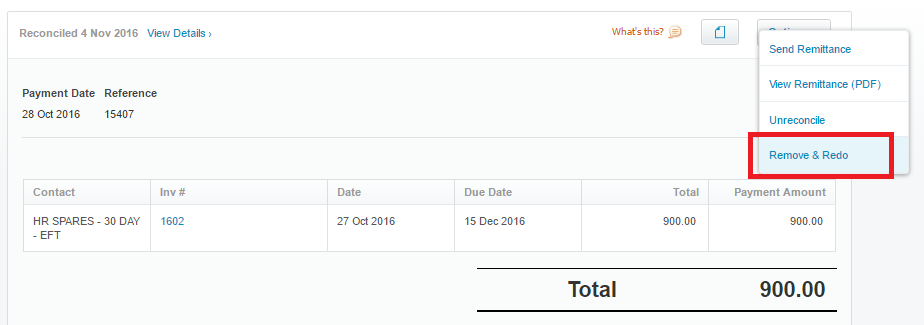
Make another payment this time, using the date that the transaction appeared in Xero.
Then go back to Xero dashboard to reconcile
After reconciling, refresh the Bank Reconciliation Summary page and it should be gone, meaning it's reconciled to the correct date.
Do this for each account til it's cleared, leaving the unreconciled cheques that arent more than 2mos old which is only going to be sorted even if under 2mos when we are doing quarterly BAS.
Related Articles
CHECKING FREIGHT CHARGES - AUDIT TASK --- (ALL FREIGHTS) STEP 1
THIS PROCESS IS ALSO APPLICABLE TO ALL FREIGHT COMPANIES FREIGHT MASTERFILE Checking Freight CHARGES · Open Freight invoice from admin inbox · Open Freight Masterfile · Get the DATE RANGE of the invoice · From the ...CHECKING UNALLOCATED TAB IN BANKING- old ??? matt 031024
CHECKING UNALLOCATED TAB IN BANKING FOR WORK ORDERS CONFIRMED AND MOVE TO UNALLOCATED COMPLETED TAB Ø Open Banking Master file at Google docs. In this tab,the first one that you need to check is from the top which is for PAID TWICE OR CREDIT AFTER ...AIC CHEQUE RECONCILIATION
CHEQUE RECONCILIATION VIDEO INSTRUCTION FOR CHEQUE RECONCILIATIONCHECKING TELSTRA INVOICES
CHECKING TELSTRA INVOICES Ø Go to website - https://signon.telstra.com/login?site=chw&goto=http%3A%2F%2Fonlinebilling.telstra.com.au%3A443%2Fcorporatebill%2Fbill%2Faccount%2Fpdfdownload.do%3FrememberMeCheckbox%3Don Ø Go to Bill. Select the ...BUSINESS VISA CARD .. 5480 RECONCILIATION
Business Visa Reconciliation. The first import step is to make sure and confirm the bank feeds are going through correctly - -------------------------------------------------------------------------------------------------------------------- NOTES * ...